What does a desktop pet actually do?
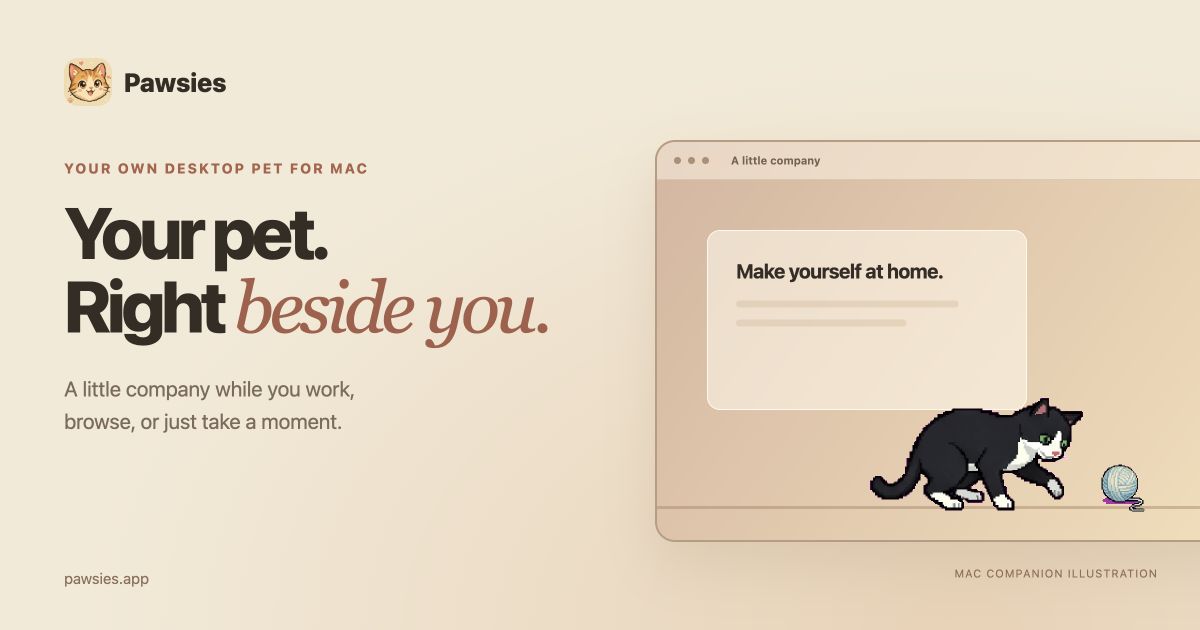
Think of the bottom of your screen as a small place for your companion's things. You can put down a bed, food and water bowls, and toys. Your pet moves around that space, settles down to sleep, and responds when you play. You can toss a ball, move a wand, or give a treat when you want a short moment together.
The companion can stay visible alongside your usual apps, so you do not have to return to an empty desktop to see it. You choose its visibility. Pause and hide controls are close at hand when you need the screen to yourself.
Check your Mac before you buy
Open About This Mac from the Apple menu and check the chip and macOS version. Pawsies for Mac supports Apple silicon, such as an M-series chip, and requires macOS 14 or later. The current Mac app does not support Intel Macs or Windows PCs. If you use a managed work computer, check that you are allowed to install an app downloaded from a website.
Initial setup needs an internet connection to verify your license and download your companion. Once that setup is complete, your installed pet can run offline. Downloading a new app update or setting up a different personal pet needs a connection again.
Choose photos that show the pet you know
Start with one clear photo of one cat or dog. Make the face, coat colors, and distinctive markings easy to see. A well-lit picture without another animal in front is more useful than a distant shot. The Mac form accepts one to four photos, and you choose the main photo that guides creation.
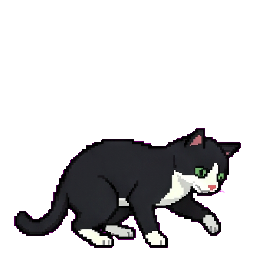
Enter the pet's name, select cat or dog, and choose Sleepy, Curious, or Playful. Pick the personality that feels closest to your animal. The result is AI-generated pixel art inspired by your photos. It is an artistic interpretation, with animated poses, rather than a promise of a perfect photographic match.
From checkout to the menu bar
Review the pet details and use an email address you can access for the purchase confirmation and license key. The price is $129 USD for one custom Mac companion, with applicable taxes shown at checkout. After payment, follow the confirmation page until the photo upload has finished and your order is saved. Keep your license key somewhere you can find it.
Download Pawsies, open the DMG, and drag the app into Applications. Open the installed app and enter your key. If your pet is still being prepared, the menu bar shows its progress. You can leave the browser once the order and photos are saved; the Mac app handles meeting your companion when it is ready.
Make a small space that suits your screen
Open Closet to choose the items you want. Begin with a bed and one toy if you prefer a clear workspace, then move them into comfortable positions along the bottom. You can change the arrangement later. The scene size control lets you make the companion and its things smaller if they take up more room than you want.
Keep sound off for quiet company, pause activity when movement would be distracting, or hide the whole scene. These are everyday controls, not decisions you have to make permanently during setup. Start simple and add the interactions you actually enjoy.
Mac and iPhone are separate experiences
The Mac purchase covers one custom desktop pet and its license, plus future app updates. Pawsies for iPhone is a separate virtual pet game with rooms, care activities, and widgets. It is free to download with a demo pet and room; personalization uses optional in-app purchases.
A Mac license does not unlock iPhone pets or rooms, and pet progress does not sync between the apps. Choose Mac if you want company beside your work and browsing. Choose the iPhone experience if you want to open a little pet world on your phone.