First, check that the gift fits their computer
A pet lover is not automatically a desktop-pet person. Think about whether they regularly use a Mac and enjoy small animated details on their screen. Ask which computer they have, or help them check About This Mac. The current app supports Apple silicon, not Intel Macs, Windows PCs, or a phone used on its own.
Also consider whose computer it is. A personal Mac is different from an employer-managed laptop that may restrict software installation. Checking those details before you buy is easier than making the recipient solve a compatibility problem during the surprise.
Pick a photo they would recognize and choose
Use a clear photo of one cat or dog, with the face, coat colors, and markings visible. A favorite everyday picture can work well if the animal is easy to see. You can include up to four photos in the Mac form and select a main photo. Use photos you own or have permission to upload.
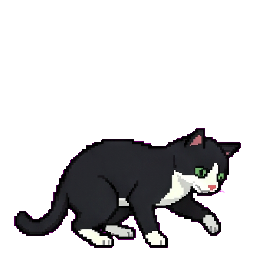
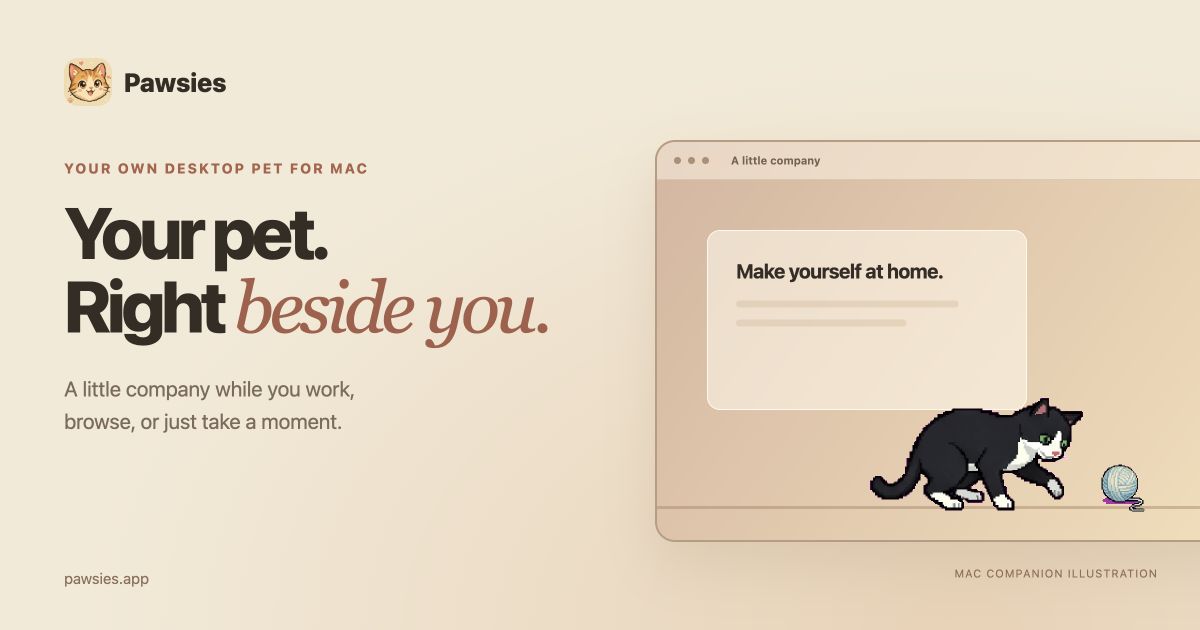
If you are unsure which picture they love, ask them to choose rather than guessing. The companion is an AI-generated pixel interpretation of those photos. It has animated poses and its own little routine, so describe the gift as a character inspired by their pet rather than an exact portrait.
Use your email to keep the surprise in your hands
Fill in the pet's name, species, photos, and personality. Sleepy, Curious, and Playful give you simple ways to choose a pace that feels like their animal. Enter your own accessible email for the purchase. That lets you receive and keep the purchase confirmation and license key before you decide when to hand over the gift.
Review everything before paying, including the Mac-only purchase and any taxes shown at checkout. Pawsies does not automatically send a gift announcement to the recipient or schedule delivery for a birthday or holiday. You will handle that message yourself.
Finish your order before sending the key
After checkout, follow the confirmation page until your photos have finished uploading and the order is saved. Your payment and the photos are both part of preparing the personal companion. Save the license key and download link so you can include them in the gift. Do not plan around a guaranteed instant generation time.
If the page says the photos still need attention, finish that step before presenting the gift. If payment succeeded and you need help, keep the order reference and contact support rather than buying a second time. A little preparation here helps the recipient start with installation instead of sorting out an incomplete order.
Make the handoff clear and private
Send the license key in a private message or put it in a card, together with the download link and a short explanation. Avoid posting the key in a public social post or screenshot; it is how the recipient accesses the companion. You can write the personal note yourself and send it at the moment you choose.
For example: ‘I made a little version of Miso to keep you company on your Mac. Download Pawsies, drag it into Applications, and open it. Enter this license key to meet your companion.’ Add that initial setup needs an internet connection. Simple instructions make the present easier to understand than a key with no context.
Let the recipient make the space their own
The recipient opens the installed Mac app and enters the key. If the pet is still being prepared, the app shows its progress in the menu bar. Once setup and the artwork download are complete, the companion can run offline. The recipient can arrange bowls, a bed, and toys, then choose sound, pause, hide, and visibility settings.
Leave those choices to them. They might like a playful companion while browsing, or a quiet pet with a bed and very little else on screen. The separate iPhone game remains available if they want to explore it, but this Mac gift does not include iPhone purchases, rooms, or shared progress.