Give the companion a clear place to live
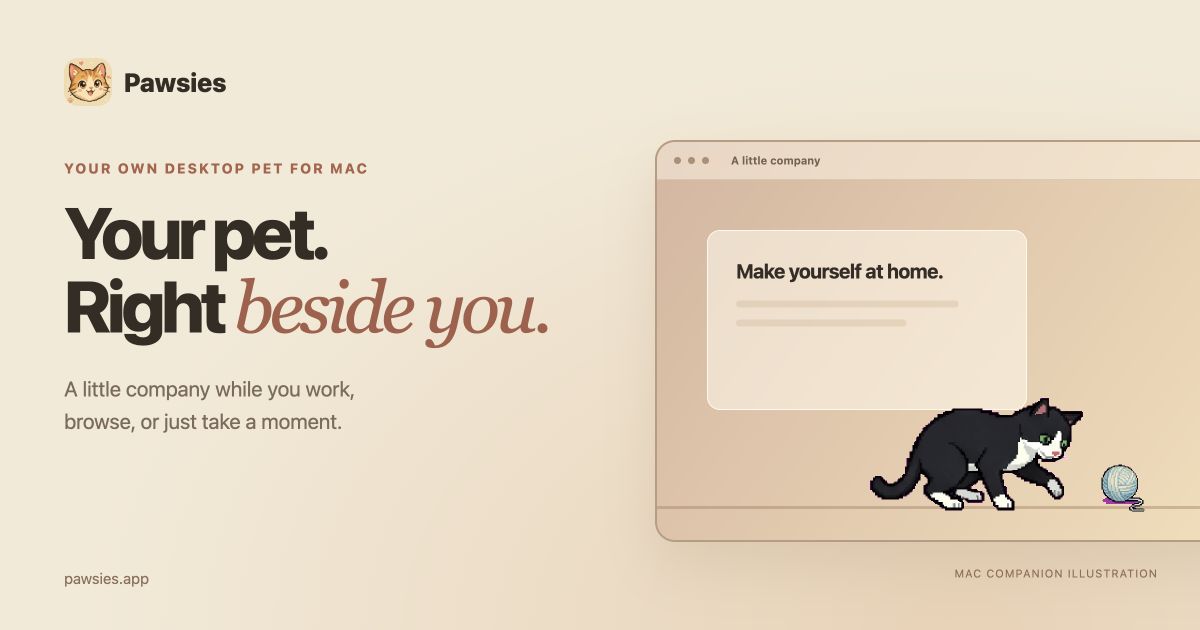
Look at the bottom of your screen before placing anything. Think about the windows and controls you use most often, then arrange your pet's items where you are happy to see them. Closet lets you choose bowls, beds, and toys. You do not need to fill every part of the screen to make it feel personal.
Start with fewer items and move them after spending some time with the app. The scene size control changes the pet and its things together, which helps keep the arrangement in proportion. A smaller setup can be a better fit for a laptop screen than the layout you enjoy on a large external display.
Decide when you want to see movement
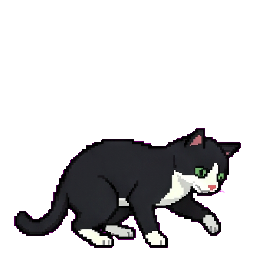
Your pet can walk, rest, and play alongside other apps. That may be welcome while reading a page or sorting files, and less welcome while checking a detailed spreadsheet. Use pause when you want to stop the activity. Use hide when you want the companion and its things out of view. You can reach both controls from the menu bar.
There is no need to keep the pet visible through every task. If you prefer seeing it only on your desktop, choose that visibility setting. The useful question is whether you enjoy the company at that moment, not whether you have spent enough time interacting with it.
Keep shared spaces quiet
Turn sound off before a call, a visit to a shared office, or a session in a library. The audio control sits beside the main activity controls, so you can change it without searching through a separate settings window. Your pet can still move and play while its sounds are muted.
Before sharing your screen, hide Pawsies if you do not want it included in what other people see. Treat this as your own screen-sharing check; do not assume that starting a call will hide it automatically. On a work-managed Mac, follow your organization's rules about installing apps and displaying personal content.
Play when you feel like it
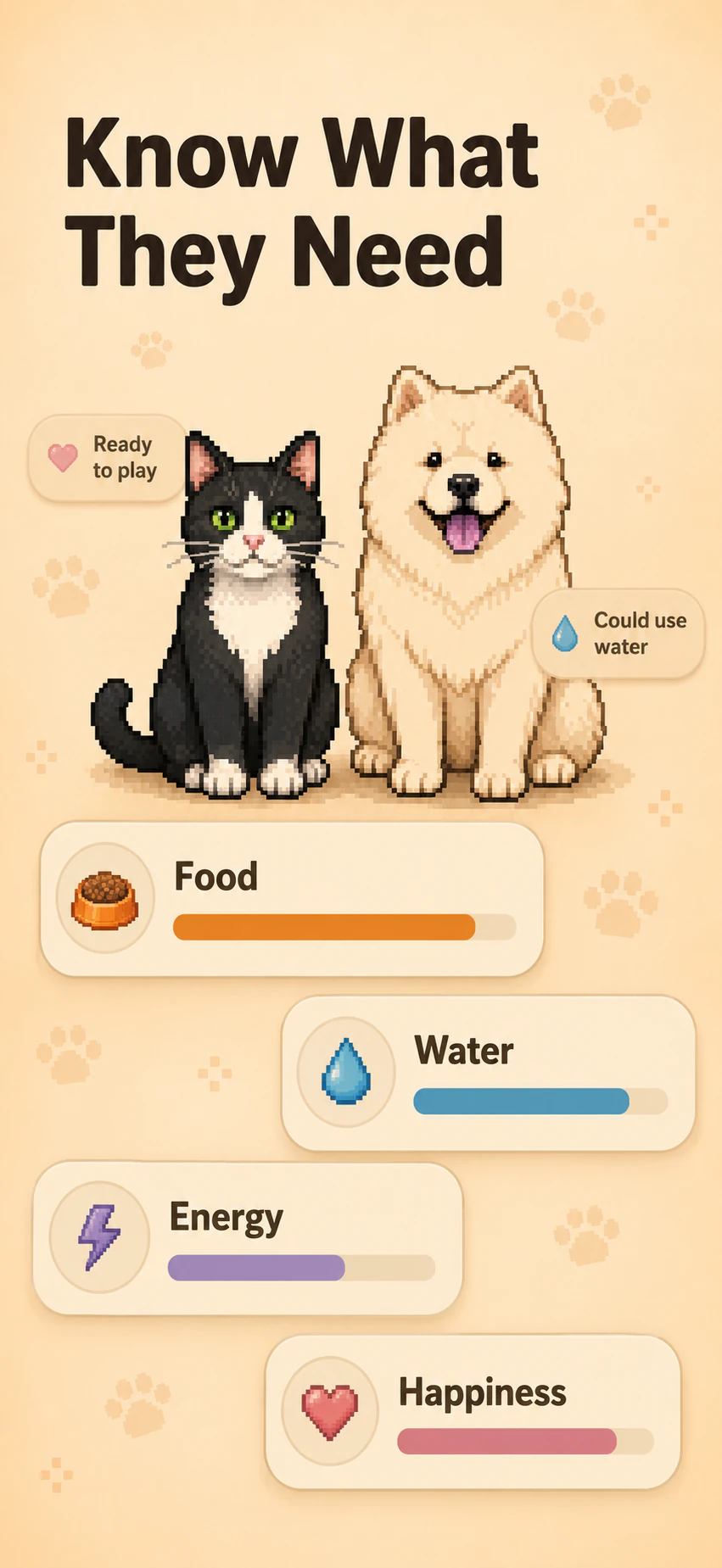
A desktop companion gives you a small interaction you can choose between other things. Toss the play ball or yarn ball and watch it bounce. Move a wand for your pet to follow, or give a treat. When you have had enough, return to your work and let the companion settle into its own routine.
You can also leave it alone and enjoy the quiet parts: a little walk, a stretch, or a nap. Sleepy, Curious, and Playful personalities give the pet different activity preferences. Choose a personality because it reminds you of your animal, or because you prefer that pace on your desktop.
Set it up before you need to be offline
Plan the first setup while you have an internet connection. You will need to verify your license, wait for your personal pet to be ready, and download its artwork. After setup is complete, the installed companion can work offline. A connection is still needed when you want to download an update or set up another personal pet.
This makes it sensible to finish setup at home before taking a laptop somewhere with unreliable Wi-Fi. Save your license key as well as installing the app. The key belongs to your purchase, and keeping it accessible helps if you later need to set up the app again.
Know what you are choosing
Pawsies for Mac is a personal desktop companion, not a work tracker or a promise of better concentration. If animation gets in your way, pause or hide it. The point is to make room for a small familiar character when you want one, without changing the tools or habits you already use.
The Mac app requires Apple silicon and macOS 14 or later. One custom pet and its Mac license cost $129 USD once, with applicable taxes shown at checkout. Windows is not supported. Pawsies for iPhone has separate purchases and progress; the Mac license does not include iPhone pets or rooms.