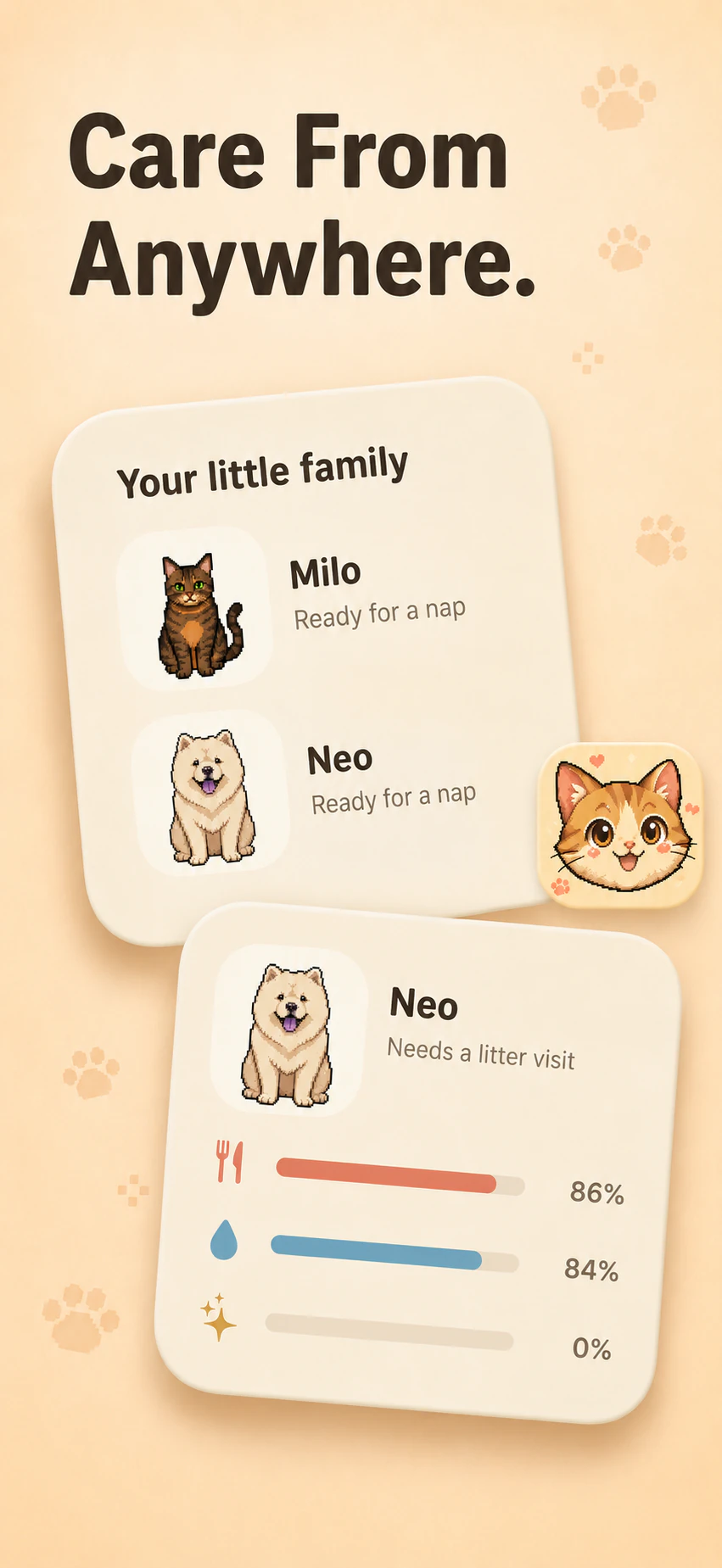
Add a Home Screen widget
- Touch and hold an empty area of your Home Screen until the apps jiggle.
- Open the widget picker. On current iOS versions, tap Edit, then Add Widget.
- Find Pawsies, choose a supported size, and tap Add Widget.
- Place the widget and tap Done.
The exact controls can vary with your iOS version. Pawsies requires iOS 16.4 or later.
Add a Lock Screen widget
Touch and hold the Lock Screen, then open Customize and select the Lock Screen if prompted. Tap the widget area, find Pawsies, and choose an available care widget. Remove another widget first if there is not enough space.
If your pet information is missing
Open Pawsies again and confirm that widget updates are enabled in Settings. Then check the widget after returning to your Home Screen. iOS manages update timing, so a widget may not change immediately after an action.
Care widgets show information at a glance. They are not a continuous game animation or a replacement for opening the app to play. For more help, visit Pawsies Support or Apple's widget setup guide below.